โ† Back to all projects
๐Ÿซ AI ยท Security ยท Kiosk Design

Face Recognition
Gate System

A smart school entry system that uses facial recognition to identify students, log their attendance, and display everything clearly โ€” even in harsh outdoor sunlight.

My role
UX/UI Designer
Platform
TV Panel + PC Dashboard
Users
Students, Guards & Admin
Status
Shipped โœ“
6
Distinct screen states designed for the student flow
2
Separate interfaces โ€” TV panel + PC dashboard
โ˜€๏ธ
Optimized for outdoor daylight readability
โœ“
Shipped to real schools
The tech worked. The design didn't. ๐Ÿ˜…

The face recognition technology was already built and functional. But the screen showing it to students? Completely bare bones โ€” raw data on a screen, no personality, no guidance, and impossible to read when sunlight hit it directly.

๐ŸŒž
Sunlight was the enemy
The TV panel sits outdoors at the school gate. Direct sunlight washed out low-contrast text and colors, making the screen unreadable for students trying to check in every morning.
๐Ÿคท
No visual feedback
Students stood at the gate not knowing if the system was detecting them, scanning them, or had already approved them. It just silently did things with no communication at all.
๐ŸŽจ
Zero design, zero engagement
The original interface was purely functional โ€” just raw data on a plain screen. It didn't feel like a real school product. It felt like a prototype left running in production.
๐Ÿ‘ฎ
Guards had no control panel
When a student had trouble getting through, the security guard had no clear interface to help them. No easy way to see what went wrong or manually approve entry.
What were we trying to solve? ๐ŸŽฏ

๐Ÿ’ฌ "How might we improve the readability and clarity of the face recognition system under real-world outdoor conditions โ€” so that every student can pass through the gate quickly, confidently, and without confusion?"

One system. Two very different needs. ๐Ÿ“บ๐Ÿ–ฅ๏ธ

This project required designing two completely separate interfaces that had to work together โ€” one for students at the gate, one for staff at a desk.

๐Ÿ“บ TV Panel (Student-facing)
Mounted outdoors at the school gate. Students walk up, face the camera, and the screen walks them through the process โ€” no buttons, no touching, just look and go.
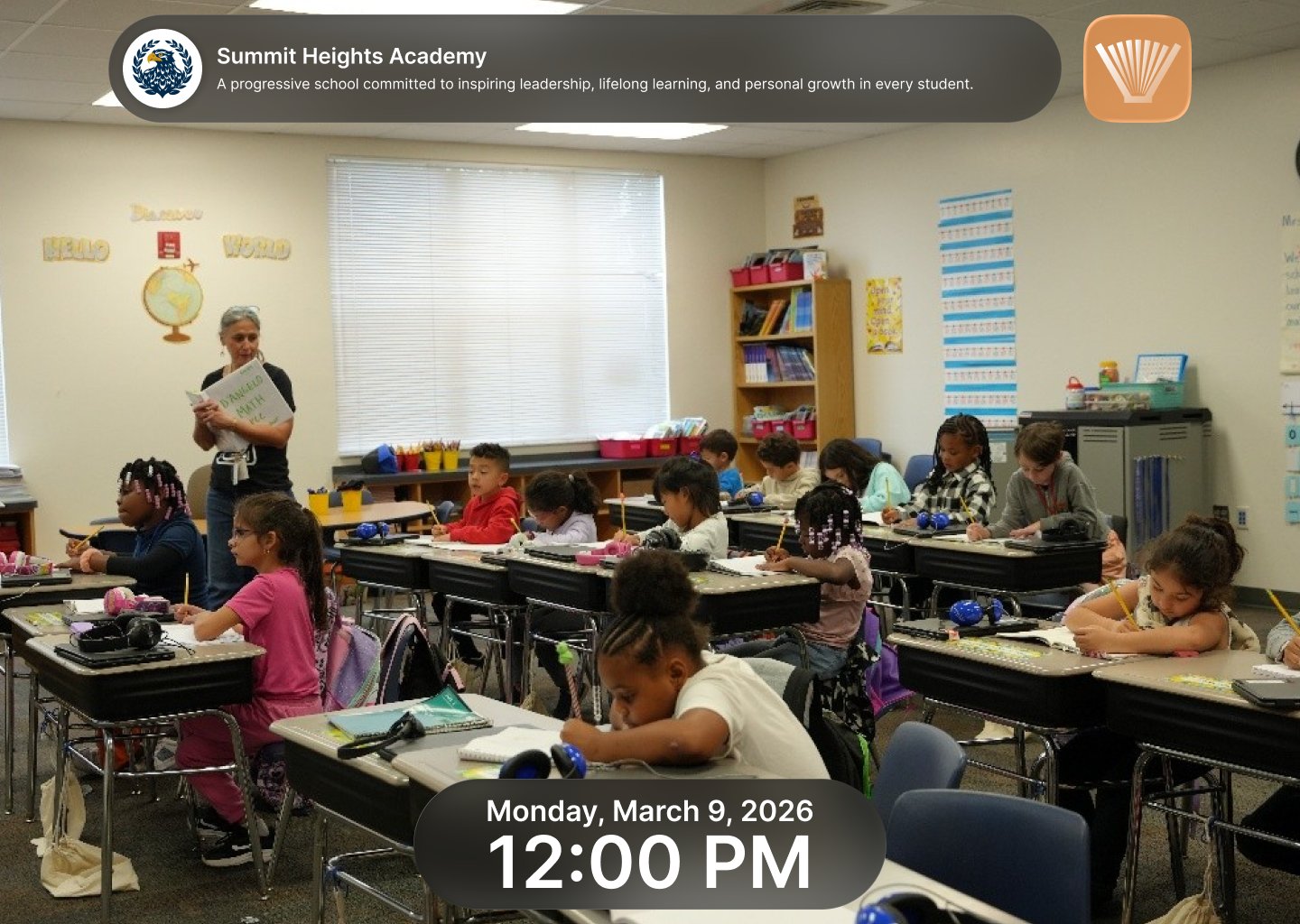
  • Idle state with live classroom photo and clock
  • Clear step-by-step stages with large, readable text
  • High contrast colors built for outdoor sunlight
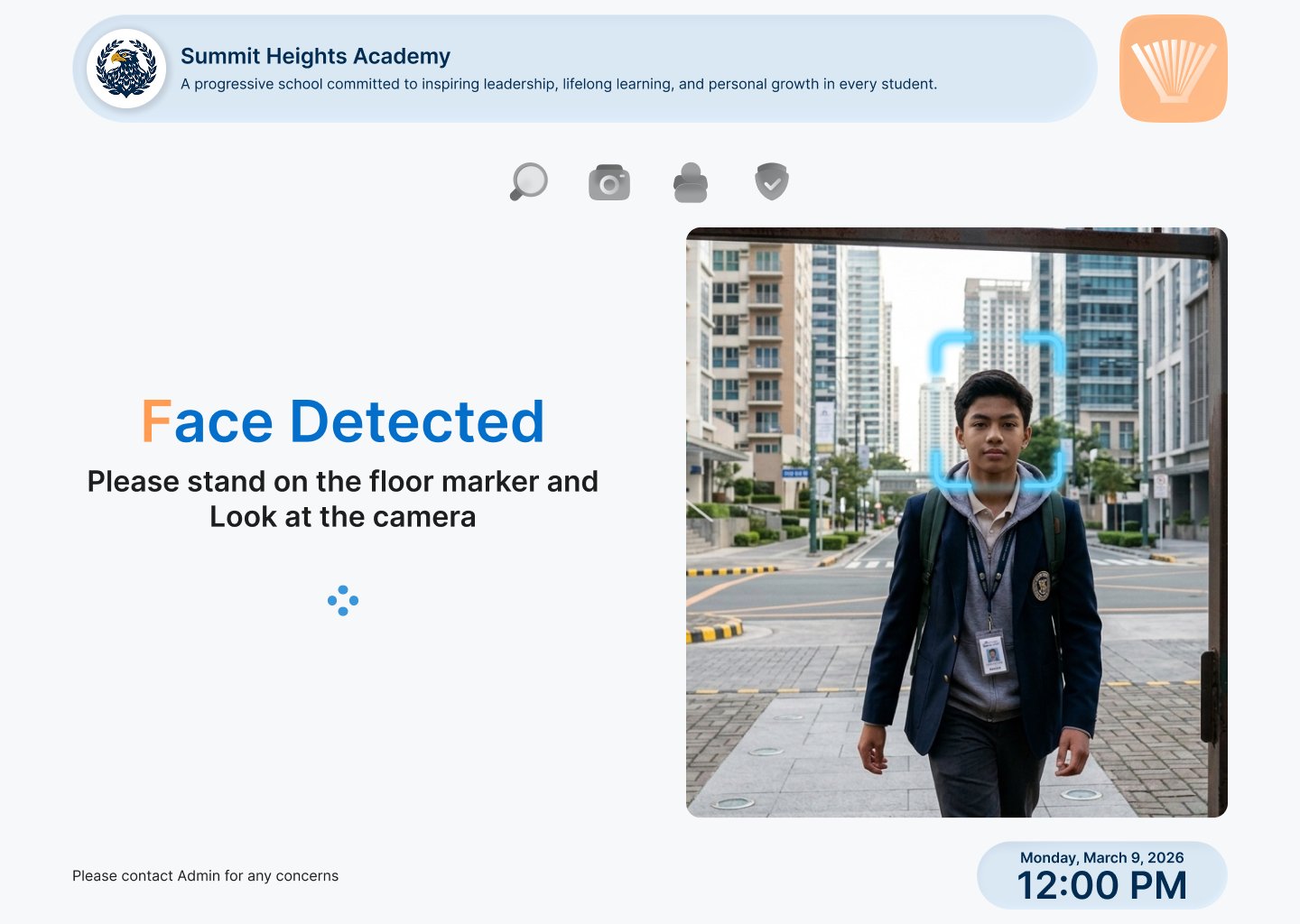
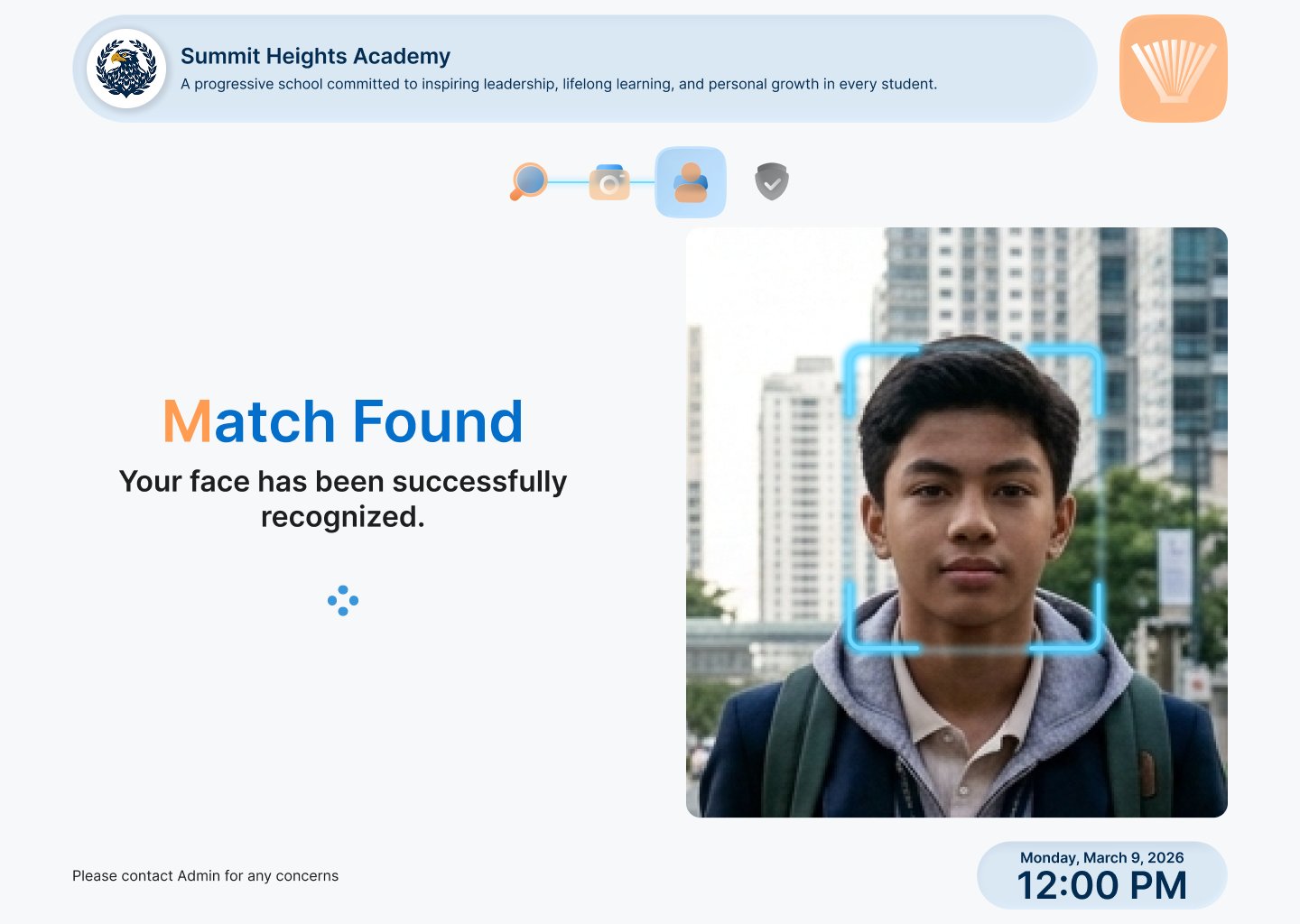
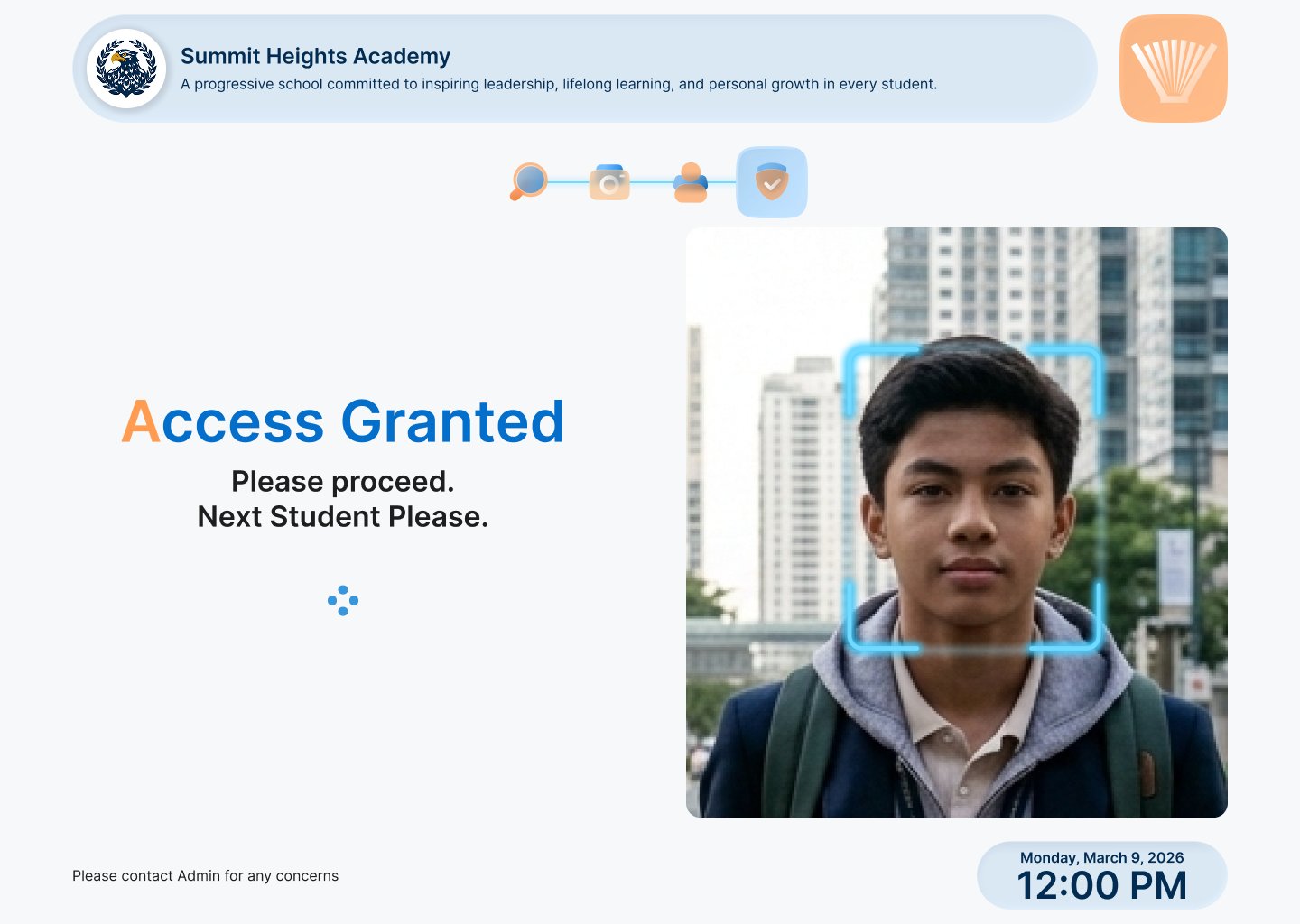
  • Big status messages: Face Detected โ†’ Scanning โ†’ Match Found โ†’ Access Granted
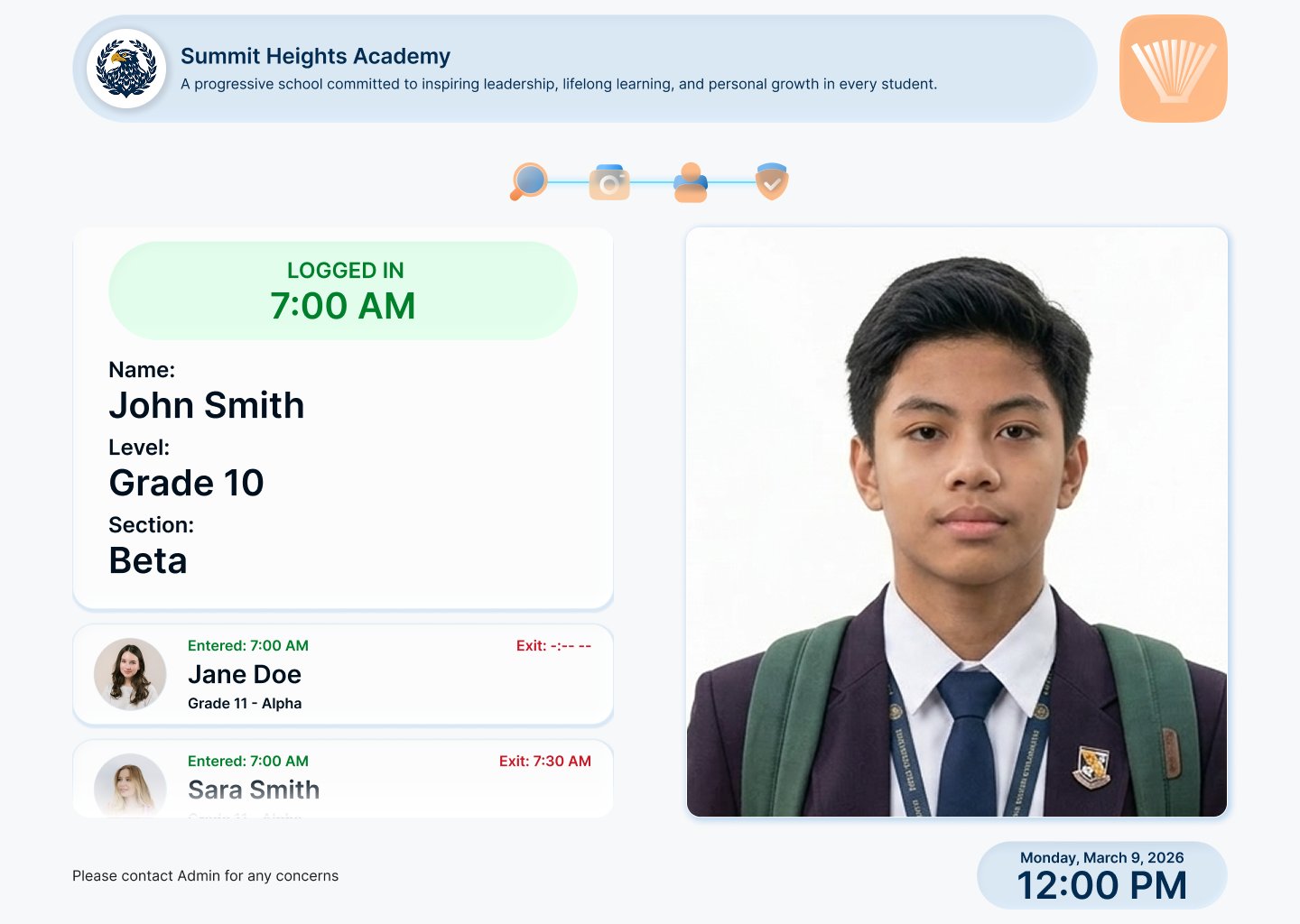
  • Student info on success: name, grade, section, entry time
  • Recent log of students who entered
๐Ÿ–ฅ๏ธ PC Panel (Admin / Guard Dashboard)
Used by the security guard or school admin to monitor who's entering and manually assist students who have trouble getting through.
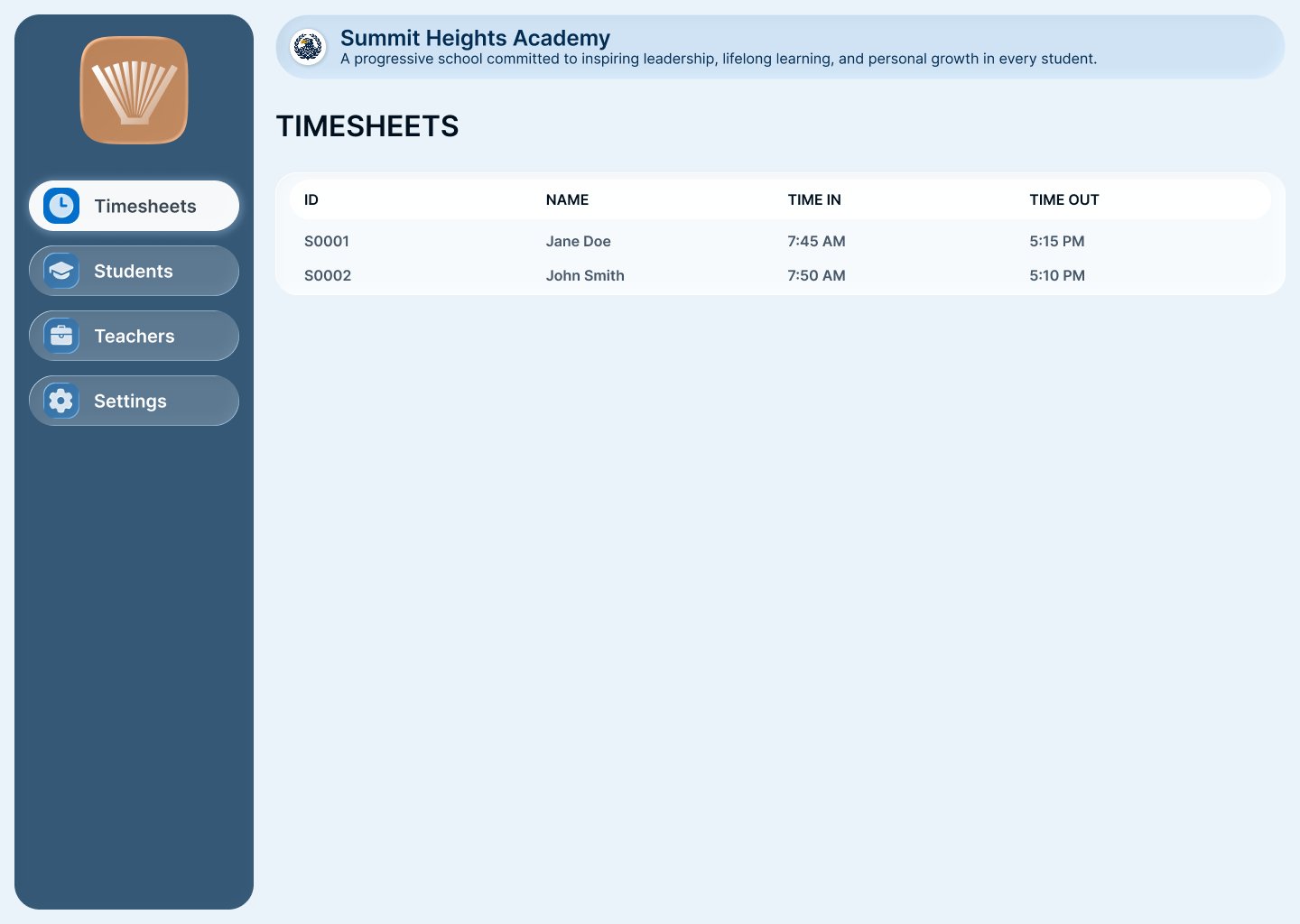
  • Sidebar navigation: Timesheets, Students, Teachers, Settings
  • Live attendance timesheet with Time In and Time Out
  • Student ID, name, and entry records visible at a glance
  • Admin can intervene and approve manual entry if needed
  • Clean, calm design โ€” easy to monitor for an entire school day
What a student sees, step by step. ๐Ÿšถ

I designed each stage of the recognition process as a distinct screen state โ€” so students always know exactly where they are and what to do next.

๐Ÿ–ผ๏ธ
Idle
School photo + live clock
๐Ÿ‘๏ธ
Face Detected
Stand on floor marker
๐Ÿ“ท
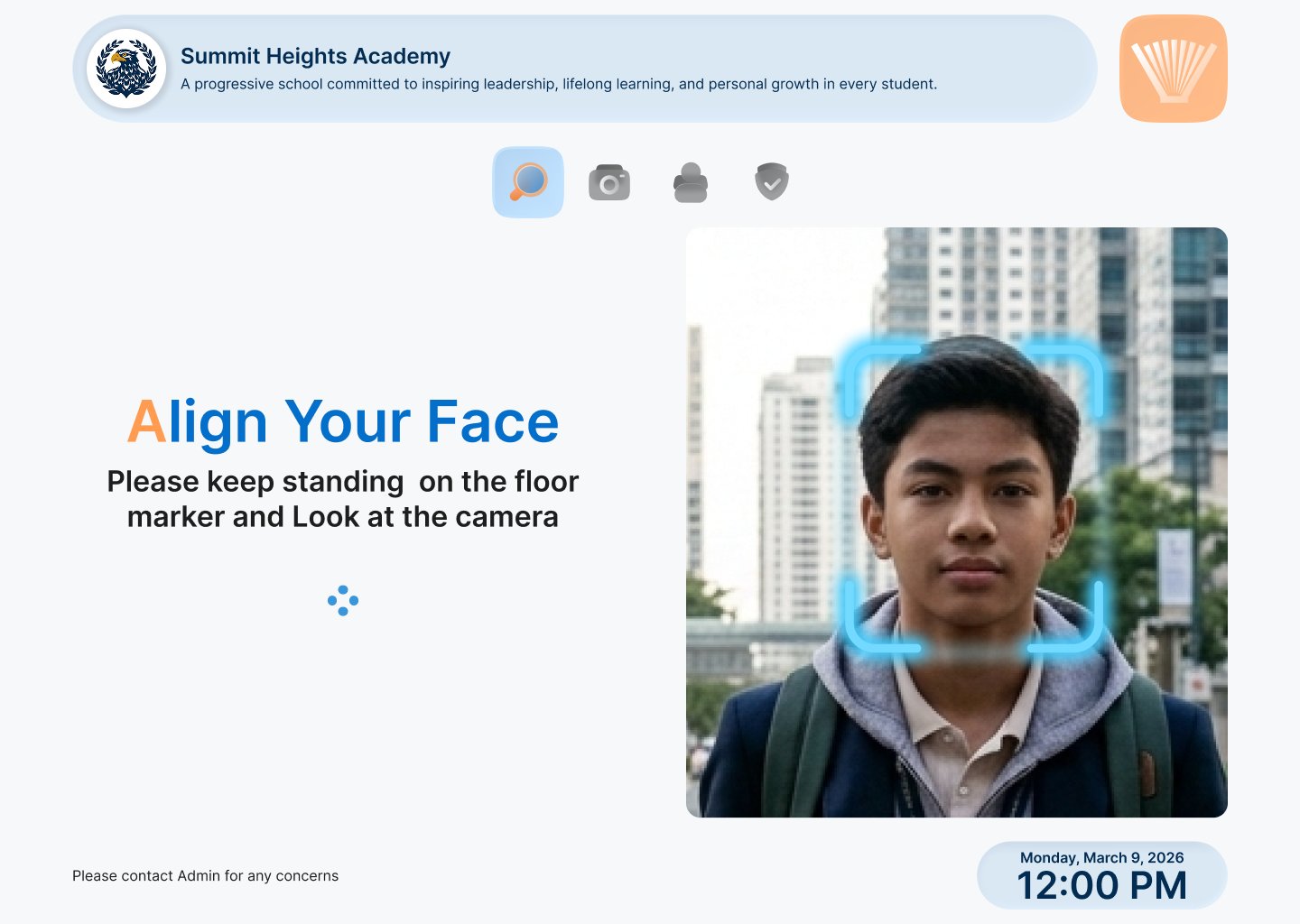
Align Face
Look at the camera
๐Ÿ”
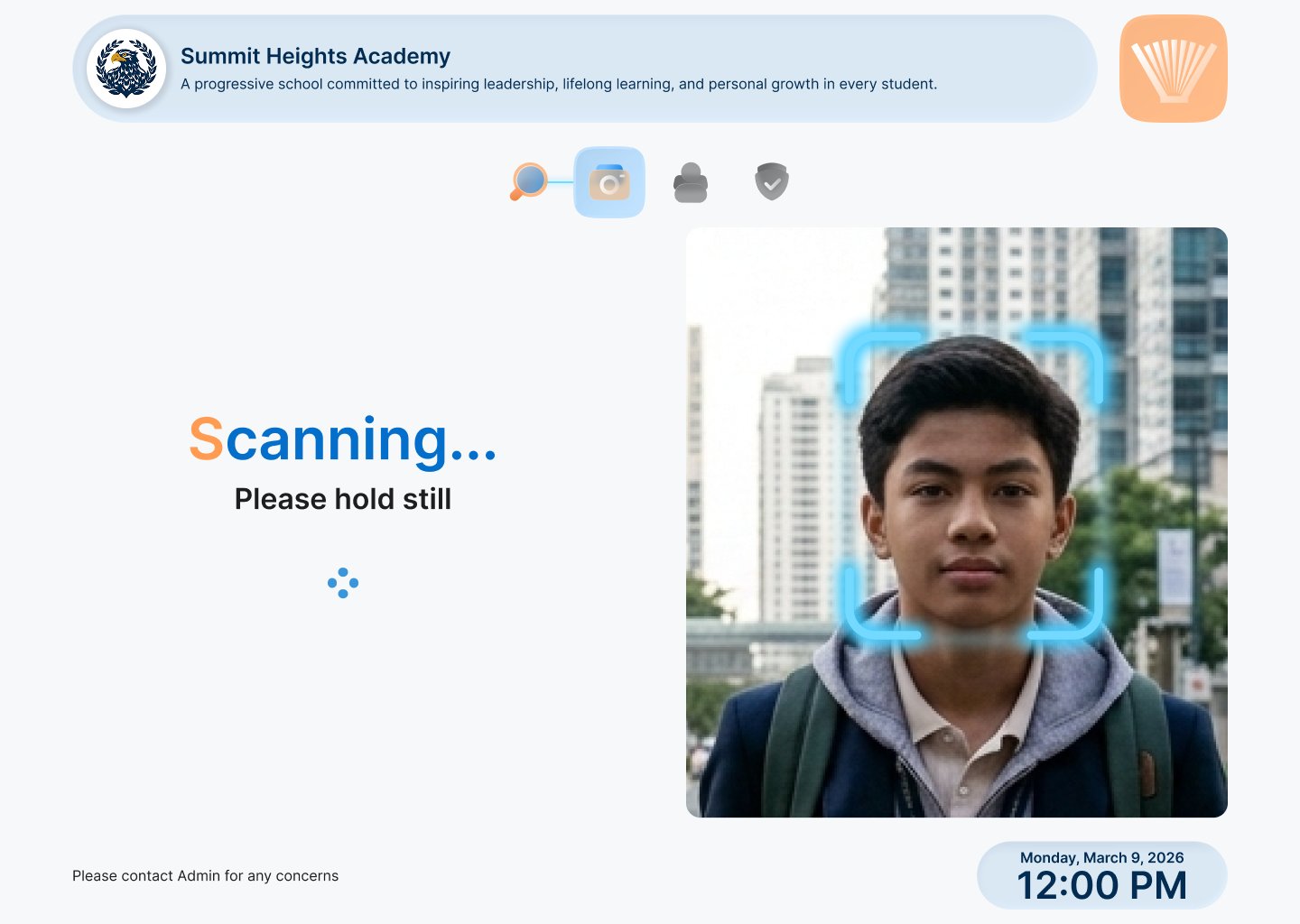
Scanning
Please hold still
โœ…
Match Found
Face recognized
๐Ÿšช
Access Granted
Please proceed
A sprint-inspired approach. ๐Ÿƒ
1
Discover
Collected stakeholder & CEO feedback on issues
2
Define
Mapped environmental constraints (lighting, distance)
3
Research
Studied kiosk & public-display design best practices
4
Design
High-contrast UI, large type, clear states in Figma
5
Review
Admin and security operator feedback session
6
Ship
Deployed to real school gates
How I solved the hard parts. ๐Ÿงฉ
โ˜€๏ธ
High contrast for sunlight
I used a light background with bold, dark text โ€” the opposite of what you'd normally choose for a "techy" screen. In direct sunlight, dark-on-light is far more readable than light-on-dark glowing interfaces.
๐Ÿ”ค
Giant status text
The main status message (like "Access Granted") is huge โ€” readable from a distance without squinting. Color also reinforces the meaning: orange for action, blue for scanning, green for success.
๐Ÿ“
Progress steps at the top
Four step icons at the top show which stage the system is at โ€” like a tiny progress bar. Students immediately understand the system is working, not broken.
๐Ÿง‘โ€๐Ÿ’ผ
Student info on success
Once matched, the screen shows the student's profile photo, name, grade, and section. It's a quick visual confirmation โ€” for the student and for the security guard watching nearby.
All the screens. ๐Ÿ–ผ๏ธ

Every screen state designed, from the idle classroom photo all the way through to access granted and the admin dashboard.

TV Panel โ€” idle & face detection states

Idle Screen
Idle state ยท School photo + live clock
Face Detected
Face detected ยท Stand on marker, look at camera

TV Panel โ€” scanning & recognition

Align Face
Align your face ยท Look at the camera
Scanning
Scanning ยท Please hold still

TV Panel โ€” match found & access granted

Match Found
Match found ยท Face successfully recognized
Access Granted
Access granted ยท Please proceed, next student

TV Panel โ€” student info display

Student Info
Student info ยท Name, grade, section, entry time + recent log of other students

PC Panel โ€” admin / guard dashboard

Admin Dashboard
Admin dashboard ยท Timesheets with Time In / Time Out for all students
How did we know it actually worked? ๐Ÿงช
๐ŸŒž
Environmental Usability Evaluation
I assessed the design under simulated outdoor lighting conditions โ€” evaluating contrast ratios, text size, and color choices specifically for a screen exposed to direct sunlight. This shaped every major visual decision in the TV panel design.
๐Ÿ“‹
Heuristic Evaluation
I evaluated each screen state against Nielsen's heuristics โ€” particularly visibility of system status, error recognition, and match between system and real world. The progress steps at the top came directly from this evaluation.
๐Ÿ‘ฎ
Stakeholder Review โ€” Admin & Security Operators
The admin dashboard and TV panel were reviewed with the internal team and security operator input. Feedback confirmed that the status indicators were immediately understood and that the dashboard gave guards the information they needed at a glance.
From bare bones to a real product. โœจ
6
Distinct screen states designed for the student flow
2
Separate interfaces โ€” TV panel + PC dashboard
0
Confusion about whether the system was working โ€” status is always visible

๐Ÿซ The real win: Students now walk up to the gate, look at the camera, and know exactly what's happening every step of the way. The security guard has a clear dashboard. The whole process feels fast, professional, and trustworthy โ€” not like a technical prototype.

Where do we go from here? ๐Ÿš€

๐Ÿ“Œ Recommended: On-site Contextual Inquiry during peak hours. The next step is observing students using the gate system in real time โ€” during the morning rush when hundreds of students are arriving at once. This will reveal any friction points that only appear under real-world pressure that our design review couldn't simulate.

Lessons from this project. ๐Ÿ“š
๐ŸŒ
Environment shapes design more than anything
Designing for a TV in direct sunlight is completely different from designing for a phone or laptop. The physical space where a product lives should drive every design decision from the very start.
โณ
Feedback during waiting is essential
People become anxious when they don't know if a system is working. Clear progress indicators and status messages completely removed the "is this broken?" moment at the gate.
๐Ÿค
Design for everyone in the loop
Students weren't the only users. The security guard needed to understand what was happening too. I made sure the TV panel was readable for nearby observers, not just the person scanning their face.
See more work.